
Update 10/2011: The Planets example has been updated (almost completely rewritten) and no longer strictly adheres to the steps and screenshots in this tutorial. The general concepts are the same, but the project files have been substantially refined. To prevent confusion about which files to use, I have removed the original project files and replaced them with the updated version. Sorry for any inconvenience, and you’re welcome!
Here’s a quick tutorial for adding basic SCORM functionality to an existing Flash file. This tutorial aims to demonstrate just how easy it can be to add SCORM functionality to an existing Flash movie.
In this tutorial, we’re going to keep things very simple; our SCORM code will only check the LMS for a prior completion, and if no completion is found, will set the course to complete at the appropriate point in the movie.
Important note: This tutorial uses ActionScript 3 and SCORM 1.2, but the same principles apply for ActionScript 2 and SCORM 2004
The steps:
- Add the SCORM wrapper to the head of the HTML file
- Import the SCORM class into the Flash file
- Add some variables and create a SCORM instance
- Initialize the SCORM connection and check for prior course completion
- Add the SCORM completion code
- Publish the FLA
- Modify the manifest
Step one: Add the SCORM wrapper to the head of the HTML file
Open the index.html file in your HTML editor of choice. Note that we’re NOT using the standard HTML file produced by Flash’s publishing feature. It’s my opinion that the HTML produced by Flash is ugly, bloated, and doesn’t support standards well enough. We’ll roll our own using stripped-down markup, external CSS file for simple styling, and SWFObject for embedding (feel free to use another embedding method if you prefer).
Once you’ve opened the HTML file, add a link to the SCORM wrapper script in the document’s <head>:
<script type="text/javascript" src="SCORM_API_wrapper.js"></script>Code language: HTML, XML (xml)Your HTML file should look something like this:
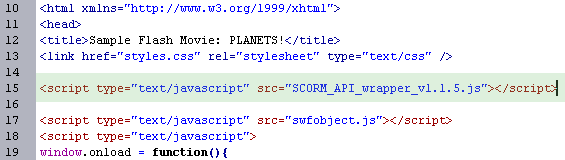
Update: This screenshot is slightly out-of-date; the SCORM wrapper file no longer includes the version number in the filename, and should just be SCORM_API_wrapper.js
You may want to specify the targeted SCORM version using JavaScript (this can help avoid problems with some LMSs). To do so, simply add the following line of code to the head of the document after the SCORM_API_wrapper.js link:
<script type="text/javascript">pipwerks.SCORM.version = "1.2";</script>Code language: HTML, XML (xml)Believe it or not, that’s the only change that needs to be made to the HTML file! Save and close the file.
Update: The JavaScript in the project files has been expanded to include a few other best practices, including using an onunload handler.
Step two: Import the SCORM class into the Flash file
Open the planets.fla file in Flash. Add the SCORM class to the Flash file using an import statement in Frame 1’s frame script:
import fl.controls.Button;
import flash.events.MouseEvent;
import com.pipwerks.SCORM;Code language: CSS (css)
The file should look something like this:
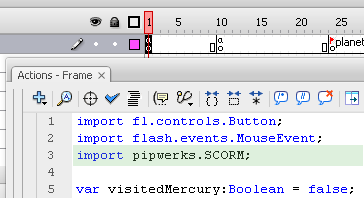
Update: The latest version of the SCORM Wrapper for ActionScript uses a slightly different path than the one in the screenshot: com.pipwerks.SCORM instead of pipwerks.SCORM.
This is a good time to test the FLA to ensure you have the correct file path for the SCORM class (it should be in a folder named com, which is inside a folder named pipwerks; this pipwerks folder should be located in the same folder as the FLA file). To test the FLA, go to Control > Test Movie. If the movie plays without errors, your file paths are ok.
Step three: Add some variables and create a SCORM instance
Declare the following variables in the first frame of your Flash file, after the import statements:
import fl.controls.Button;
import flash.events.MouseEvent;
import com.pipwerks.SCORM;

var lessonStatus:String;
var lmsConnected:Boolean;
var success:Boolean;Code language: JavaScript (javascript)
Next, you’ll need to create a new SCORM instance using the pipwerks.SCORM class. You can create a new SCORM object using the following code:
import fl.controls.Button;
import flash.events.MouseEvent;
import com.pipwerks.SCORM;

var lessonStatus:String;
var lmsConnected:Boolean;
var success:Boolean;
var scorm:SCORM = new SCORM();Code language: JavaScript (javascript)
Update: The FLA’s ActionScript has been rewritten and has a slightly different structure than the code presented in the rest of this post, but the same principles apply.
Step four: Initialize the SCORM connection and check for prior course completion
Add a scorm.connect() call, which returns a boolean indicating whether it succeeded or not.
import fl.controls.Button;
import flash.events.MouseEvent;
import pipwerks.SCORM;

var lessonStatus:String;
var lmsConnected:Boolean;
var success:Boolean;
var scorm:SCORM = new SCORM();

lmsConnected = scorm.connect();Code language: JavaScript (javascript)
If the connection was successful, lmsConnected will evaluate to true. That means we can start requesting data from the LMS. Start by requesting the current completion status.
A few things to note: If the course status is “completed” or “passed”, we won’t need to keep the LMS connection active — we need to be careful not to overwrite the previous completion by accident. So, if the course has already been completed, we’ll just disconnect and call it a day.
If the completion status isn’t “completed” or “passed”, we’ll need to explicitly set the course to “incomplete”.
import fl.controls.Button;
import flash.events.MouseEvent;
import pipwerks.SCORM;

var lessonStatus:String;
var lmsConnected:Boolean;
var success:Boolean;
var scorm:SCORM = new SCORM();

lmsConnected = scorm.connect();

if(lmsConnected){

   lessonStatus = scorm.get("cmi.core.lesson_status");

   if(lessonStatus == "completed"){

      //Course has already been completed.
      scorm.disconnect();

   } else {

      //Must tell LMS course has not been completed yet.
      success = scorm.set("cmi.core.lesson_status", "incomplete");

   }

} else {

   trace("Could not connect to LMS.");

}Code language: JavaScript (javascript)
Step five: Add the SCORM completion code
Find the appropriate place in your movie to call the completion code. In this example, we’ll call the completion code when all four planets have been visited. There is already a ‘check’ for this condition in the function resetPlanets, so we can just add the code there.
function resetPlanets():void {

if(visitedMercury && visitedVenus && visitedEarth && visitedMars){

   success = scorm.set("cmi.core.lesson_status", "completed");
   scorm.disconnect();
   lmsConnected = false;

   gotoAndPlay("end");

} else {

[ ... ]Code language: JavaScript (javascript)
Step six: Publish the FLA
Publish the FLA. Be sure to turn OFF the “HTML” option since we’re using our own HTML file. You should also ensure the target Flash version is Flash 9, since the “Planets” movie uses ActionScript 3 and a few filters that are only supported by Flash 9+.
Save and close the FLA.
Step seven: Modify the manifest
All SCORM-based courses require a manifest file (imsmanifest.xml) that contains important metadata about the course. For our example, we’ll simply grab an existing imsmanifest.xml file and update it to match our course.
- Open the imsmanifest.xml file
- Change the identifier attribute of the manifest element (at the top of the file) to something suitable for this course (no spaces):
identifier="MyPlanetsCourse" - Find the
organizationselement (andorganizationchild element) starting at line 15. Change the “default” and “identifier” attributes to something suitable for your organization. I’ll use “pipwerks”. Be sure to avoid spaces and illegal characters, such as punctuation (other than the underscore _) - Find the two
titleelements, starting at line 17. Change both of them to something suitable for your course. For this example, I’ll change them both to “Planets!” - You’ll need to list the files used by this course in the
resourcenode. For this example, we need to make sure “href” is set to “index.html”, then we need to list the other files usingfileelements:<resource identifier="SCO_Resource_01" type="webcontent" adlcp:scormtype="sco" href="index.html"> <file href="index.html"/> <file href="planets.swf"/> <file href="SCORM_API_wrapper.js"/> <file href="swfobject.js"/> </resource> - Save and close the imsmanifest file
Wrap-up
That’s all there is to it! As you can see, adding simple SCORM code is much easier than many people realize. It may seem daunting at first, but in reality all we’ve done here is:
- Added a little JavaScript to the HTML file
- Added a few variables and functions to the ActionScript
- Edited a few IDs and file links in the imsmanifest.xml file
In my opinion, SCORM only becomes difficult if you try and use it to handle a course’s sequencing and navigation, which even SCORM experts are hesitant to do (it’s considered a “broken” feature by many key figures in the industry).
The bottom line is that if your existing FLA is self-sufficient before SCORM comes into the picture — it’s already set up to handle its own navigation internally via ActionScript and already has a mechanism for determining whether the user has ‘finished’ the movie, be it completing an activity or simply reaching the last frame of the SWF — SCORM becomes more of drop-in item, almost an afterthought. It doesn’t need to be a nightmare that scares developers away.
It’s my hope that my SCORM wrapper and ActionScript classes encourage more people to embrace SCORM as a simple, easy way to ensure their course(s) use standards and work in almost any LMS.
This is terrific, thank you so much for sharing. What would be different if using AS2 instead of AS3?
As far as the SCORM code is concerned, the only difference between ActionScript 2 and ActionScript 3 is which class file gets imported; once the correct class file is imported, the SCORM syntax used in your code will be the same.
I’m trying to get this to work with our LCMS tool, and I keep getting an error where your API isn’t found. The pipwerks.SCORM.isAvailable isn’t being found.
Any ideas on why this is happening?
That means the ActionScript can’t find the JavaScript wrapper. Double-check your HTML file to ensure the wrapper is present.
nevermind. Saba’s desktop preview tool is the issue.
Wow, I really like what you’ve done here. Question: Let’s say a user has to quit before clicking on all the planets. What is the best method to store which planets have been clicked for the next session?
@Tom
Thanks. Most people use
suspend_datato handle that; it’s read/write and has roughly the same capacity/functionality as a JavaScript cookie.If you store the clicks in an array, such as
var clicked:Array = [ 1,1,1,0 ], you could send the ‘clicked’ data to the LMS usingsuspend_data://Create and populate array var clicked:Array = [ 1,1,1,0 ]; //Send data to LMS var success:Boolean = scorm.set("cmi.suspend_data", clicked.toString()); if(success){ trace("data sent successfully"); } //Retrieve data from LMS var returned_data:String = scorm.get("cmi.suspend_data"); clicked = returned_data.split(",");Note that
suspend_dataonly takes a single string; if you want to store the clicked array plus extra data (something the LMS/SCORM doesn’t handle for you, such as the user’s Flash Player version), you’ll need to figure out a way to convert it all to a string before sending it tosuspend_data. JSON works well for this.I’m considering making a more advanced version of the “Planets” example, using
suspend_datato track which planets have been clicked, and to bookmark the ‘last viewed’ spot in the movie usinglesson_location.I probably won’t get around to it for a while, though, since I only work on this stuff in my spare time. 🙂
Thanks for the response. I was thinking of using suspend_data, but some of the swf’s I load were created in Captivate which I thought uses suspend_data for tracking slide views. If I pass this value before exiting, I shouldn’t have a problem.
Since my course is non-linear, with JSON I could store the name:value pairs and I wouldn’t have to worry about getting the order correct in the array.
Thank you for posting this. If I see you at an eLearning Conference, I’m definately buying you a beer.
Captivate does use suspend_data for its own internal navigation/bookmarking, but only in limited circumstances:
If the Captivate SWF wasn’t published with SCORM tracking enabled, it can’t make any SCORM calls.
Even if the Captivate SWF was published with SCORM tracking enabled, if you’ve taken the Captivate SWF out of the Captivate-generated HTML file, the Captivate file’s SCORM calls won’t work because they won’t be able to locate the corresponding JavaScript functions (and LMS API) in the HTML file.
(Unless you copy all of the SCORM-related code from the Captivate HTML/JS files to your own project, which wouldn’t be a very smart thing to do.)
Plus Captivate currently uses LocalConnection with a proxy SWF to make SCORM calls, while my SCORM ActionScript classes use ExternalInterface, so no conflicts there.
Besides, when you load a Captivate SWF into your own Flash SWF, it automatically breaks Captivate’s built-in SCORM handling. Therefore you should be able to import Captivate SWFs into your Flash SWF and not have them affect your Flash-based SCORM calls at all.
RE: Beer… mmm… 😀
Great work!
I’ve implemeted this and got it working great on Reload Scorm Player, SCORM TestTrack (tested all different ways of launching) and Moodle.
Has anyone had any experience with this working on Plateau LMS?
Many thanks,
Steve
@Steve
Great, thanks for sharing!
(and no, unfortunately I don’t have any access to Plateau)
Thanks for the awesome post. IT is great when experts share their expertise.
I wanted to let folks know that The Academic ADL Co-Lab has been working with Flash and SCORM for a while and have developed a simple tool that is similar in functionality to what is described above. It is called LibSCORM.
LibSCORM has an HTML and Flash version. You can read about it and download it from the following Website http://academiccolab.org/libscorm
Our developers will look at the code you have supplied here to see if there might be some additional functionality we can add to LibSCORM.
@David
Thanks for the comment.
Joe Nelson contacted me a few weeks back and told me about LibSCORM (I’m embarrassed to say I hadn’t heard of it before then). I think LibSCORM is an interesting product.
What’s important to understand is that LibSCORM is designed to do a lot more than my wrapper and AS classes, and therefore is much more complex than my offerings. My wrapper and AS classes were designed solely to provide a simple, best-practices-compliant method for adding SCORM code to your own course system; LibSCORM aims to provide an entire course framework including navigation and data persistence.
I think it’s safe to say LibSCORM is not a competitor to what I’m offering here, and I’d even recommend that people check it out if they’re looking for a starting point for building their own (SCORM 2004-only) custom course system. But if they already have a course system and just want to SCORM-ify it, I’d say grab my wrapper and have a go at it. 🙂
This is fantastic! It’s addressed every issue I had with telling the LMS whether the user finished or not, and related server-side problems. Sadly, it created a new problem. Once my “Master” swf loads a portion of the lesson, it’ll play 15-20 frames and stop. Nothing I try seems to work. I can’t get my loadMovie to play! Please share your ultimate wisdom and tell me why this is most likely happening.
The set-up is, I have a master swf that’s say, 30 frames long, each frame loads a new swf into a blank MC, they vary as to what is contained. Drag and drop, XML driven exercises , or just text scrolling on screen. It doesn’t matter what is loading, they hit the point where the audio would start and freeze. I don’t know if it’s because the preloader is being skipped, or it just doesn’t like audio, or what.
@Mark
The SCORM classes are independent of loadmovie and all other AS components/classes (SCORM.as doesn’t extend anything, and only uses ExternalInterface). It shouldn’t have any effect on your loaded SWFs.
Without seeing your FLA/SWFs, I can’t really give you any specific advice. If you’d like to share links and perhaps walk through the code, please post this issue in the elearning development forum and we’ll go from there.
I fixed the problem I posted about before (that’s by the by). However, I’ve just been told that, now that everything is working perfectly we need to add another function. We need the user to be able to pickup where they left off after they prematurely exit a course. It’s not working now, and I don’t have a single clue as to how to do it. I’m assuming that it’s a variable involving the APIwrapper.js. So, will there need to be some kind of code added on every frame that the next lesson in a course starts?
Hi Mark
Please use the forum for this kind of inquiry.
Short answer:
You can use SCORM 1.2’s “cmi.core.lesson_location” for storing bookmark data. Please read the ADL‘s documentation.
To get and set the bookmark data:
scorm.get(“cmi.core.lesson_location”);
scorm.set(“cmi.core.lesson_location”, “myBookmarkInStringFormat”);
Regarding using this data for jumping around in the course, it’s up to the course developer to configure their ActionScript to set/get/use the bookmark data at appropriate times.
dear philip
i’vd tried to Import your demo content (SCRM_AS2_demo.zip) to LMS Moodle that Exist in your site. after that your demo content had a good relation with Moodle but when I checked view activity report there was not any Information about the activities on the demo content.(like lesson_status,completion_staus,student_name,…)
could you tell me that couse?
thanks alot
mehdi
Dear Philip,
First of all, thank you for this benefical example. I is going be a nighmare for me. I want to add tracking to my learning content and i want it to show the user where s/he stayed (ex: at 30 swf) I know i have to use cmi.location but i dont know where and how i need to place it. More over do i need to make changes on scorm.as?
thnak you.
Thanks alot for this information/tutorial!! It has removed the scales from my eyes in relation to SCORM and Flash, much easier that I first though.
Thanks for the tutorial, but i have some problems
– I´ve packaged my proyect as you say here, but in scorm player it doesn´t return any variable.
I have a variable wich save de score of the student, but… nothing, it doesn´t change the “raw” status in Scorm.
– The status “completed” :
success = scorm.set(“cmi.core.lesson_status”, “completed”);
Doesn´t change… but everything seems to be right.
Can anyone help me?
I tried to test your file with SCORM 1.2 self test but failed on the manifest checking. Is there a way to successfully pass it?
sorry, those old sample manifests weren’t quite up to snuff for some LMSs. if you have a manifest that already works on your system, you can just make a copy and swap out the variables (course name, file references, etc.). otherwise you could try generating a new manifest using a few of the open-source editors out there, such as EXE or Reload.
Philip,
I’ve come to realize that using flash/scorm (as2) with a LMS (sum-total), will always recognize your course as one big SCO, instead of multi-SCO…which in turn limits some of the tracking features with the LMS.
I’ve devised a way to track if my lessons were visited and to track location and send that information to the suspend data field and then later on retrieve it…but with our html courses when a user takes a course and completes various lessons the LMS after exiting the course gives a nice read-out of which lessons were completed.
What I would like to know:
Is there any way to add dummy files to a manifest to represent the lessons (five in total) in my flash course, and then when a user completes a lesson, flash connects to the LMS and marks that particular lesson as completed. This way when the user exits the course they will see in the read-out which lessons they have completed, instead of seeing a completion score for one SCO.
The dummy files in the manifest will never be loaded, and the LMS’s navigation will be disabled so the user has to follow my navigation, but the course would be looked at as a multi-sco course just for the purpose of tracking.
Any Ideas would be greatly appreciated.
Steve
Washington, DC
@steve
This isn’t quite accurate. My examples are all single-SCO but that doesn’t mean you can’t build multi-SCO courses with Flash. If you’re trying to control the sequencing/navigation within your Flash files, then you have designed it to be single-SCO. It isn’t a limitation of Flash or SCORM, it’s how you’ve built your course. Many people use Flash to create multi-SCO courses.
Your HTML-based courses behave differently because they were designed differently (I haven’t seen them so I can’t tell you what the differences are). You can create Flash-based courses that behave identically to your HTML courses, you just need to figure out how the HTML courses are set up internally and within the manifest.
I suggest visiting scorm.com and reading their documentation for content packaging and sequencing. Good luck.
Hi Tom,
I’m still struggling to work out how to use lesson_location and suspend_data. Are you still thinking of doing the more advanced example with these present? Or can you point me in the direction of where I can find help with this.
Thanks,
Nick.
Sorry Phillip, I have no idea why I wrote Tom for!!
@nick no problem, I get called all kinds of names. 😉
I’m not sure what problem you’re encountering… you don’t know how to get/set those fields, or you aren’t sure how to use them?
Get/set is covered in the tutorial. As for how to use them in your course, they’re very flexible.
lesson_locationandsuspend_databoth store a string, so you can save whatever string you like.lesson_locationcould be a URL if you want to use a URL, or it could be a scene ID in your SWF, or a page number, etc. It’s up to you and how you build your course.suspend_datahas a larger capacity thanlesson_location, so sometimes people choose to put everything intosuspend_data. There are no hard and fast rules.If you have further questions about SCORM I suggest you post in the E-Learning Technology and Development Google Group. Lots of helpful people there with plenty of SCORM experience.
Thanks for the response Philip!
I think I understand it all now. The issue I seem to be having is in re-initialising the connection to the LMS, it doesn’t seem to want to do it. I will post it on the forum though, so thanks for the link.
Nick.
Hi Philip, thanks for this excellent tutorial.
I have a question, I used your AS2 codes for my course. Everything seems fine on Firefox/Mac (the values are read etc) until we tested it on IE7. On IE/Windows XP, no values are read and there’s a connection problem.
I can’t figure out what happened, even when using your codes verbatim still generates error.
Do you know if there’s an issue with IE?
Thanks again
Great work, I figured you might want to see that your project works with Moodle. I took the contents found in your completed directory and created a zip package uploaded it to Moodle and it was able to track attempts of someone using the course.
I have included a link back to you and thank you for your efforts.
All the best,
Kevin Brake
eLearningShow.com
Here is the link to it working with moodle:
http://elearningshow.com/moodle/
@kevin: thanks
@james: i’ve don’t know of any outstanding IE issues. the wrapper(s) are browser-neutral, so perhaps you’re experiencing a browser communication (ExternalInterface) issue.
1. Hi, can you post tutorial on doing quiz, saving score to LMS. I noticed it on your demo files (scorm 2004)
//if(success){ success = scorm.set(“cmi.score.min”, “0”); }
//console(“scorm.set(‘cmi.score.min’, ‘0’): ” +success);
//if(success){ success = scorm.set(“cmi.score.max”, “100”); }
//console(“scorm.set(‘cmi.score.max’, ‘100’): ” +success);
so if i want to add 20 mark if a button clicked, what code should i use?
Is it
console(“scorm.set(‘cmi.score.raw’, ’20’): ” +success); ?
2. Could u post a demo source file for scorm 2004 AS2 coz you had post other version except this.
3. I tried to edit your index.html to make the .swf file auto exactfit, but if i alter your file, i cant get orange/green color on moodle tracking.
I found your website so helpful and thank you for your kindness. 🙂 I hope you could help/guide me.
hei, thanks for this, it was really helpfull, but i have a huge limitation, since i’m designing an aplication that has to run in Wii Opera, that means i can’t use any AS3, so i’d like to know how to get de correct class file as you say in the second comment.
Thank you in advance
You have no idea how useful this tutorial has been for me and my team! Thank you so much for taking the time to outline these steps. I wish every tutorial out there was as clearly detailed and simply explained.
Any plans to take this one a step further?
@craig i’m glad you’ve found it helpful
i plan to write more tutorials and include more in-depth examples, but since i do this in my spare time, it will have to wait — time is in short supply these days!
Hi Again,
I am looking for the every illusive list of SCORM Vars:
I have noticed you have one listed:
cmi.core.lesson_status
I want to convert our older LMS into a SCORM Compatible one.
We push vars into the swf (course1.swf?user=Kevin) for example.
We push vars out of the swf into a database using (getURL(gthe_url add send_this, “_self”,”post”);).
I now need to be able to push vars generated in our flash file that are normally in send_this (score=90&time=60+seconds&name=Kevin) in a SCORM friendly format.
Plus the LMS now needs to be smart enough to notice this is a SCORM Complaint file and not display that no api error.
Any tips would be great.
Thanks,
Kevin
Hi Philip,
I have been able to track down these vars so far and figured it maybe useful to you too:
LMS to Lesson
cmi.core.student_id
cmi.core.student_name
cmi.core.lesson_location
cmi.core.credit
cmi.core.lesson_status
cmi.core.entry
cmi.core.score.raw
cmi.core.score.min
cmi.core.score.max
cmi.core.lesson_mode
cmi.core.total_time
cmi.suspend_data
cmi.launch_data
cmi.student_data.attempt_number
cmi.student_data.mastery_score
Lesson to LMS
cmi.core.lesson_location
cmi.core.lesson_status
cmi.core.exit
cmi.core.score.raw
cmi.core.score.min
cmi.core.score.max
cmi.core.session_time
cmi.suspend_data
@kevin the ADL’s site has all of this info, with detailed explanation. You can also find it at http://www.scorm.com/scorm-explained/technical-scorm/run-time/run-time-reference/
Hey Philip,
I would just like to add my thanks to the list and then follow it up with a question 🙂
what is the scorm.save function for?
it isn’t mentioned (that i could see) in this tutorial but calling it was the only way i could get any of the set functions to make their changes when working within reload scorm 1.2 player
many thanks
L
@lachlann scorm.save() is a shortcut for SCORM’s
Commitfunction. According to the SCORM specs,Commitexplicitly instructs the LMS to persist (write/save/store) the data in the database. Some LMSs probably leave the data in the browser (JavaScript) untilCommitis invoked, because if you try to save everything in real-time, it can choke up the server (not all courses are as simple as this demonstration course, and some SCORM courses send an incredibly large number of items to the server). The rule of thumb is to use scorm.save after a series of events, not after each event, like this:Hey philip thanks for this. I found that I had to add some javascript calls to body of the index.html page to make sure that the scorm variables were saved
onunload="pipwerks.SCORM.data.save()" onbeforeunload="pipwerks.SCORM.data.save()"Other wise if i used the save command the resource would refresh in the browser.
L
Thanks for helping me research SCORM Variables, I am now attempting to have my LMS at least be detected as SCORM Compatible.
I believe, I need to enable or call for some sort of javascript, I have been attempting to reverse engineer some open source LMS players to work with my LMS.
It seems that the SCORM Setup works by having the Flash based application call functions from the HTML that either pushes or pulls variables either in or out of a database.
..but first thing is first, how the heck to make for example a Articulate SCORM Compatible Package be detected as being in a SCORM LMS.
Ideas?
Thanks,
Kevin
@kevin
No offense, but this comment thread isn’t really the right place to discuss this. Here’s a related thread on the E-Learning Technology and Development Google Group you might find useful. Feel free to add your 2 cents on that thread or start your own.
Hi Philip,
You have been great, it is hard to believe that a standard is so challenging to implement.
I really appreciate your time and input.
Kevin
@kevin np, glad to help
Hi Philip,
I have successfully implemented your wrapper in AS3. Here is a question, I want to call a suspendSCO custom function on unload. Basically in Flash, when the user closes the browser, i want a custom Flash Function to load. How do I do that.
Basically bookmarking when the user closes the window. I have got it to work from a button inside flash, but I want to find out on browser unload.
Thanks
RG
@ravi Use an unload handler in your JavaScript, and tell it to trigger your suspendSCO custom function via an ExternalInterface callback [link no longer available] in your SWF.
Hey Philip!
I have a really troublesome old course that I have to SCORM…I have tried to implement your method – could you tell me what code I would use to just send a “completed” status when a certain frame is reached? I have tried a lot of modifications to your code but nothing works. The timer is running but I cannot get a completion status on SCORM cloud. I have been using fscommand code and the JCA simple scorm packager up until now but it doesn’t work with this course for some reason.
Many thanks!
BIG TRON
SCORM 1.2 would use
scorm.set("cmi.core.lesson_status", "completed");Hi Philip,
I have a flash SCORM course that contains several screens. Some of those screens contain videos. Those videos are stored in a directory outside the swf file, but, of course, are reference from within the swf file.
Currently, we’re tracking when the user completes each screen of the SCORM course. Here’s the variable we’re using and some sample data:
cmi.suspend_data => t0_p1$t1_p8$t1_p14$t7_p12$t7_p11$t7_p10$t7_p9$t1_p2####false
When a screen is completed, it’s topic# and page# are added to this variable.
My developer is telling me that he can add a topic and page to this variable when the video starts playing, or has completely finished playing, but not somewhere in between. We’ve had load of teachers use this course, and we’re finding that few of them let the video play to the very end. We’d like to mark the screen completed if they’ve played 90% of the video or reached a particular frame 90% of the way through).
Am I getting the runaround or is this really impossible or extremely difficult to do in Flash?
Thanks for any help you can offer!
@flashnewbie it’s possible, but comes with many caveats. the first thing that comes to mind is the issue of what if the learner skips around the video? if the learner jumps forward in the video using the seek bar, it makes tracking where they are in the video much more difficult. but, as evidenced by YouTube’s embedded ads, you can trigger events to occur at any point in a video… it just requires careful scripting and planning.
your issue is a bit of a tangent from this page’s blog post… if you’d like to discuss this in more detail i suggest posting on the E-Learning Technology and Development Google Group.
Great aticle. I am new to SCORM. I want to develope SCORM 1.2 complaint LMS.
Can you please tell me the process that I need to follow to convert the LMS to SCORM 1.2 complaint LMS.
@sachin you’ll need to read the documentation at http://www.adlnet.gov. they have code samples, too.
Have there been any reports of the API wrapper or the AS3 class breaking between Flash CS3 and CS5? I’ve got a project that I’ve added some functionality to (but the SCORM-related code in the Flash piece and HTML has remained unchanged) that is now failing to connect to the LMS/conformance test environment (“LMSInitialize() never invoked”).
If I use the old SWF compiled with Flash CS3 it works, but the one compiled with CS5 just won’t, despite the code being identical. Relevant ode snippets follows:
import pipwerks.SCORM;
var scorm:SCORM;
lmsConnect();
//ATTEMPT TO CONNECT WITH LMS
function lmsConnect():void {
scormmessage = “”;
lessoncompleted = false;
scorm = new SCORM();
lmsConnected = scorm.connect();
if(lmsConnected){
lessonStatus = scorm.get(“cmi.core.lesson_status”);
if(lessonStatus == “completed”){
//Jump to notification that this course has already been completed
coursecompleteNotify();
} else {
//Must tell LMS course has not been completed yet.
success = scorm.set(“cmi.core.lesson_status”, “incomplete”);
introCheck();
}
} else {
lmsConnected = false;
if(scormlms == “yes”) {
//Jump to notification that course failed to connect to LMS
scormfailNotify();
} else {
introCheck();
}
}
}
@kevin nope, no reports of issues w/ CS5 (ActionScript 3 is still the same)
Wondering what I missed …
Any other LMS packaging I have done has been automatic – Authorware, Captivate. These have created more files than you mention, e.g.
– adlcp_rootv1p2.xsd
– imscp_rootv1p1p2.xsd
– imsmd_rootv1p1p2.xsd
– ims_xml.xsd
So maybe there’s no need for these, but when I followed your instructions above, then zipped my published files, I got a whole bunch of LMS errors, starting with
>
No Deliverable Activities Found
Would you like to enter debug mode?
A fata error has occurred, communication with the server has been lost.
Press OK to display debug information to send to technical support, ot Cancel to exit.
Data Postback Errors
`370`<?xml version=’1.0′?> <lmsresponse> <error present=’true’> <description>Unable to save XML to database, made 1 attempts.com.geolearning.courseware.rustici.GeoIntegration.RollupRegistration(GeoIntegration.java:193)nulljava.lang.NullPointerException</description> </error> </lmsresponse>
`370`<?xml version=’1.0′?> <lmsresponse> <error present=’true’> <description>Unable to save XML to database, made 1 attempts.com.geolearning.courseware.rustici.GeoIntegration.RollupRegistration(GeoIntegration.java:193)nulljava.lang.NullPointerException</description> </error> </lmsresponse>
<
Suggestions??
TIA
Steve
@steve One of the more common causes for this error is accidentally zipping the folder instead of the contents of the folder, causing the SCORM XML files to be located in a subfolder instead of at the root level of the ZIP file. They are required to be at the root.
Thanks … but that’s not it.
Any other suggestions?
Steve
Grab some valid SCORM XML files from Rustici (scorm.com) or even Captivate and edit to suit your needs. My XML files are the weak link in my examples. I need to replace them. 😛
LOL.
Bugger – yours are more simple 😉
Thanks!
The simple SCORM is realy simpel. And thank you for presenting it so clearly.
Now, what if you wanted to go just one small step further, but without letting SCORM interfere with the navigation. Flash does that perfectly.
An example: a course consists of 10 questions. Either of them can be right or wrong. What actionscript code would be needed to track whether, say, question / answer 1-8 are right, but 9-10 are wrong?
Said in other words: the course may be incompleted = some answers are wrong, but some are actually right.
And – additional question – would it even be possible for SCORM to maintain status: incompleted but still remember the answers (wrong, right) if a person ‘pulled the plug’ or the system went down, which unfortunately does happen.
This would mean, a graduation of ‘course completed’ and ‘course not completed’. An in-between could be called ‘course completed but not perfect’ or the confirming: ‘Acceptable, but you can do it better’.
@morten SCORM supports all of that. Have a look at the documentation, or better yet, check out http://scorm.com/scorm-explained/technical-scorm/run-time/run-time-reference/